
New documents
File ▸ New (Ctrl N) offers four presets — 720p, 1080p, 2K and 4K — with an editable width and height beside them.
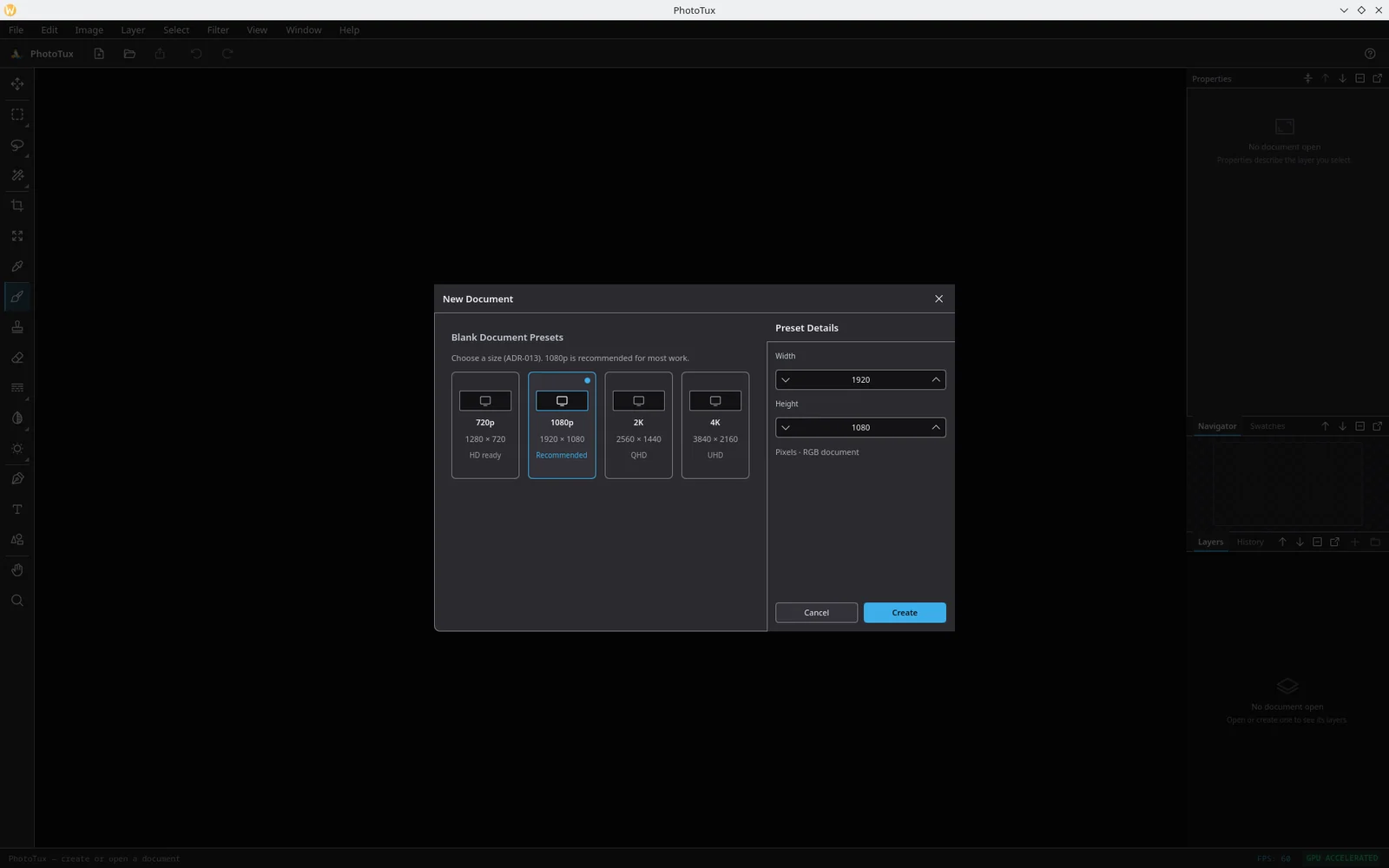
A new document opens with an opaque white Background layer and is zoomed to fit. The white is part of the pixels rather than an undoable step, so it saves and reopens like any other raster.
Opening
File ▸ Open (Ctrl O) reads .ptx, PSD, PNG, JPEG,
WebP, TIFF, BMP and GIF.
The file chooser opens in the folder of the document you already have open, or — if there is none — in whichever folder a chooser was last accepted in. All four choosers (Open, Save As, Export, Embed ICC) share that policy, so saving into one folder and then pressing Ctrl O does not send you back to Pictures.
Opening a flat image gives you a one-layer document named after the file. Opening a layered PSD gives you the layers it could carry, and a compatibility report naming what it could not.
Save versus Export
This is the distinction that matters most.
| Save | Export | |
|---|---|---|
| Shortcut | Ctrl S | Ctrl Alt Shift W |
| Writes | .ptx (or PSD) |
A flattened image |
| Keeps layers | Yes | No |
| Keeps masks, adjustments, filter plans | Yes | No |
| For | Continuing work | Sending somebody a picture |
Export does not save your document. Exporting a PNG and closing the tab loses the layer stack. Do both.
File ▸ Save As (Ctrl Shift S) writes to a new path and makes that the document’s path from then on — the tab and the window title follow.
The .ptx format
.ptx is PhotoTux’s own layered document: a chunked container holding the
layer graph, a raster per layer, a mask per masked layer, and the source
pixels of every smart object. It is compressed, and it is what you should be
saving while you work.
The format is pre-1.0 and still moving. A document written by an older build opens in a newer one; the reverse is not guaranteed. Export anything important to PNG or PSD as well.
PSD
PhotoTux reads and writes a subset of PSD: RGB, 8 bits per channel, with layers, names, opacity, visibility and blend modes.
On import, anything the subset cannot carry is listed in a compatibility report rather than silently dropped — so you find out that a layer used an unsupported adjustment before you spend an hour on the file rather than after.
On export, features with no PSD equivalent are flattened into the layer they belong to.
Flat image formats
| Format | Notes |
|---|---|
| PNG | Lossless, with alpha. The safe default for exporting. |
| JPEG | Lossy, no alpha. Exported at quality 92. |
| WebP | Lossy or lossless, with alpha. |
| TIFF | Lossless. |
| BMP | Uncompressed. |
| GIF | First frame only; PhotoTux is not an animation editor. |
The export format follows the extension you type. Full details in the file format reference.
Colour profiles
Image ▸ Color ▸ Embed ICC Profile… writes a profile into the document so other applications know what its numbers mean. Clear Embedded ICC removes it. Profile bytes are validated before they are written.
See adjustments and filters for assign, convert and soft-proof.
Autosave and recovery
PhotoTux writes an autosave copy of open documents as you work, and says so in the status area when it does.
If a session ends badly — a crash, a power cut, a GPU reset that could not be recovered — the next launch offers those documents back. Accept and you get the document as of the last autosave; decline and the recovery copy is discarded.
Recovery is a safety net, not a save. It holds what autosave last managed to write, which may be a few minutes behind. Ctrl S is still the thing that guarantees your work is on disk.
Closing
File ▸ Close (Ctrl W) closes the active document. If it has unsaved changes you get three explicit buttons — save, discard, cancel — rather than a generic OK and Cancel, because saving is the commit and discarding is destructive and the two should not look alike.